Table of contents
2M Marketers

Social listening tools are great at collecting mentions. The real challenge starts later, when you have to find only the important ones among hundreds.
That’s where filters come in to help you quickly surface the mentions that actually matter!
Below are 10 time-saving filters every social listening tool should provide.
Key takeaways:
-
Filters help you focus on the mentions that matter
A single project in Brand24 can collect thousands of mentions. Filters let you narrow them down and quickly spot the conversations that actually deserve your attention.
-
AI-powered Context Search helps remove irrelevant mentions
Sometimes the same keyword shows up in totally different situations. Smart Context Search uses AI to figure out what each mention is really about, then filters results by meaning and context, so you only spend time on conversations that actually match the topic you’re analyzing.
-
Combining filters gives you much clearer insights
Using several filters together, for example Source, Sentiment, and Language, helps you zoom in on very specific conversations, like negative TikTok mentions in English.
-
Filters make it easier to analyze campaigns or trends
By adjusting the date range, source, or language, you can quickly see how discussions changed during a campaign, product launch, or viral moment.
-
Saved filters help you repeat the same analysis faster
If you often review the same type of mentions, you can save the filter combination and return to it anytime instead of setting everything up again.
10 ways to filter data in Brand24
In Brand24, you’ll find all filters in the right-side panel of the Mentions view. You can apply them individually or combine several filters to narrow down results and focus on specific conversations.
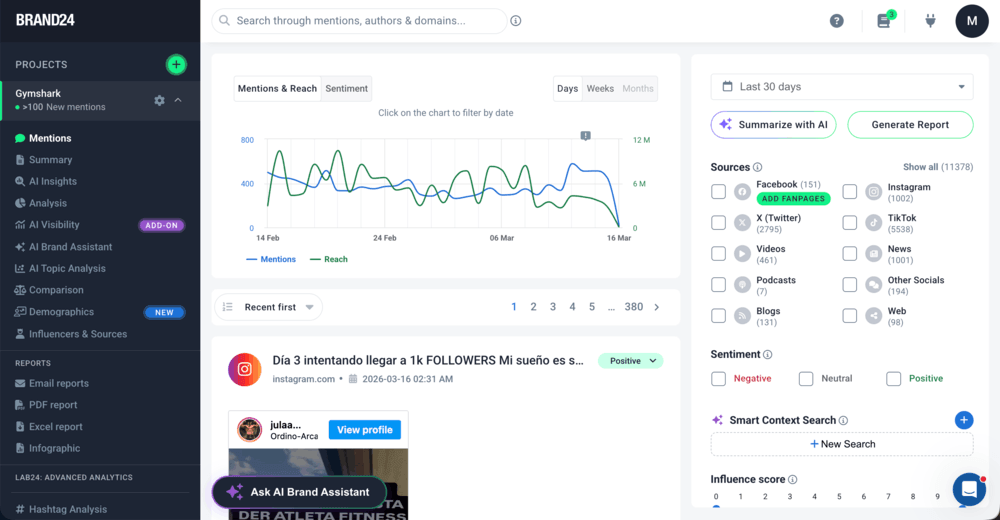
Let’s take a look at the filters you can use to explore your mentions more effectively:
01 Smart Context Search
Smart Context Search is an AI-powered filter that identifies mentions relevant to a specific topic by analyzing the meaning of the text rather than just the keywords used.
🔍 What does this filter do?
It helps you find mentions based on a keyword combined with its meaning and relevance.
Sometimes a keyword appears in completely different contexts. For example, if you’re monitoring Gymshark, you might want to focus only on conversations about a specific campaign.
Context Search filters mentions based on what they’re actually about, so you only see the conversations relevant to your topic.
🧭 How do you use it?
You simply describe the topic you’re interested in! Just enter a prompt like:
“mentions describing Gymshark66 fitness challenge“
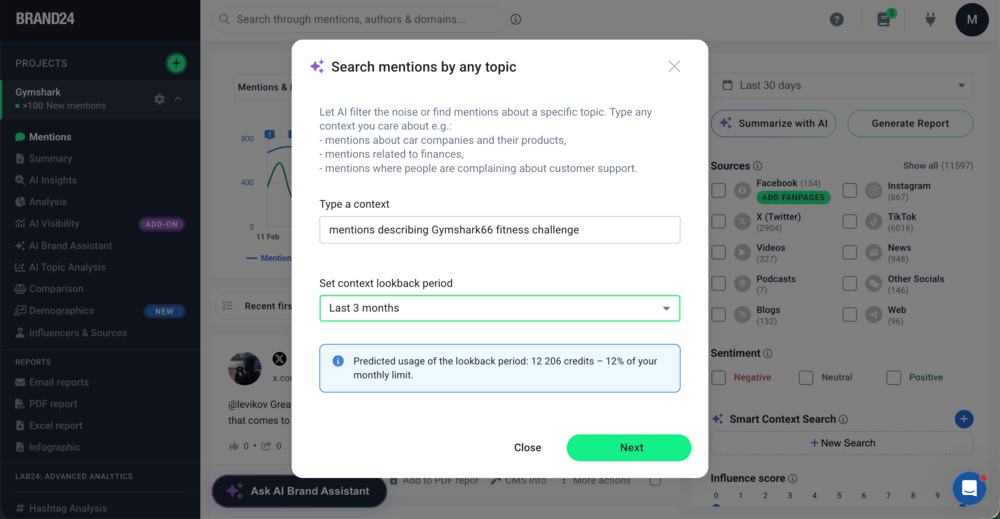
Before you apply the filter, you can preview the filtered mentions to make sure your prompt is doing the job and filtering what you actually need:
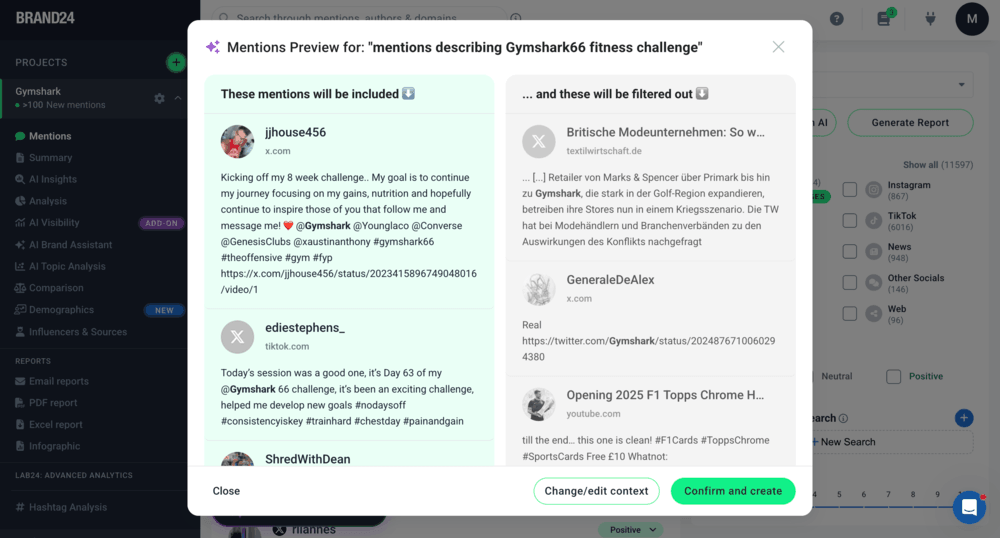
Once the filter is on, Brand24 analyzes the text of mentions in your project and shows only the ones that match that context.
It also works on new mentions appearing in the project, so the results will stay relevant over time.
💡 Why is it useful?
If you’re working with social listening, you probably know how quickly irrelevant mentions can pile up.
Smart Context Search works a bit like noise-canceling headphones for mentions, by removing conversations that don’t match the topic you’re actually analyzing.
It’s especially helpful when:
- your keyword has multiple meanings
- you want to analyze a specific topic within a broader project
- mentions contain your keyword but talk about something else
- you want cleaner data for analysis or reporting
Instead of constantly refining Boolean queries, you can simply describe what you want to find.
02 Boolean Search
Boolean Search allows you to refine your results using logical operators such as AND, OR, and NOT. It’s one of the quickest ways to narrow down mentions for a one-time search in a large monitoring project.
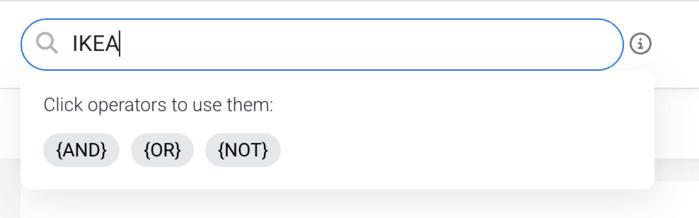
🔍 What does this filter do?
Boolean Search helps you combine keywords and operators to precisely control which mentions appear in your results.
Instead of searching for a single keyword, you can create a query that includes or excludes specific terms.
For example, if you monitor IKEA, you might want to see mentions about the restaurant but ignore discussions about the furniture.
🧭 How do you use it?
Boolean Search works with simple operators:
AND– shows mentions containing both wordsOR– shows mentions containing either wordNOT– excludes mentions containing a specific word
For example:
IKEA {AND} restaurant
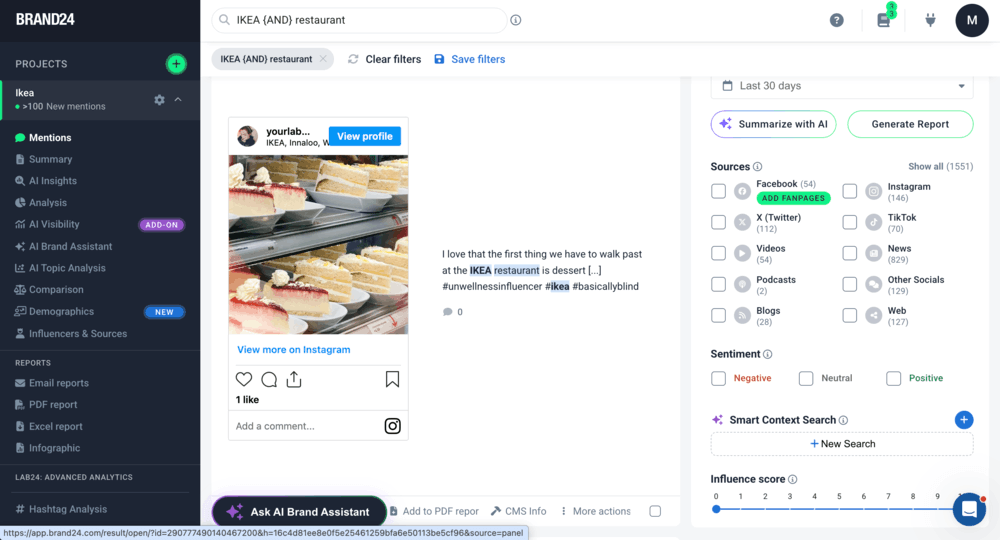
This query will now show mentions that include only “IKEA” and “restaurant“.
💡 Why is it useful?
Boolean search helps you refine results when a single keyword brings too many unrelated mentions.
It’s especially useful when you want to:
- include or exclude specific keywords from your results
- analyze conversations about a topic, but remove irrelevant contexts
- narrow down mentions in large projects with thousands of posts
This way, you can quickly focus only on the mentions that match your query.
03 Sources Filter
Sources Filter lets you narrow mentions by publication source. Instead of looking at all mentions together, you can focus on specific platforms or media types.
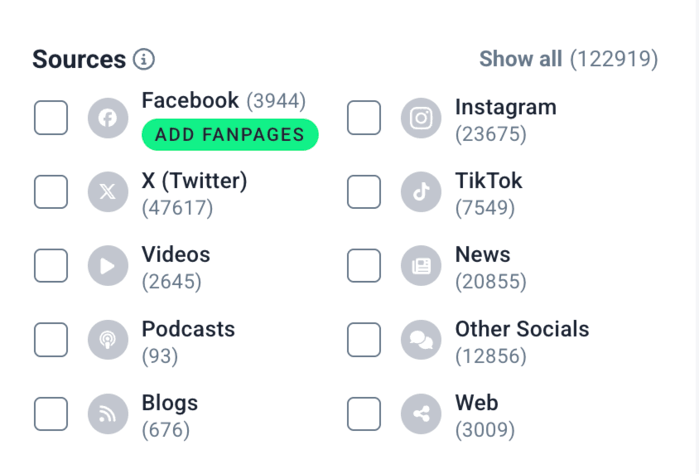
🔍 What does this filter do?
The Sources filter lets you see mentions from specific platforms.
Since social listening means tracking conversations across lots of online sources, filtering by platform makes it easier to see where people are actually talking about your brand.
As Brand24 collects mentions from many places across the web, including:
- Social media (X (Twitter), Facebook, Instagram, TikTok)
- News websites
- Blogs
- Forums and other social platforms
- Videos and podcasts
- Other websites across the web
Then, using this filter, you can quickly see how discussions about your brand differ across channels.
🧭 How do you use it?
Simply choose one or more sources from the filter panel.
For example, if you’re monitoring IKEA, you might want to:
- check Instagram to see if and how people share photos of their furniture
- analyze news mentions when the brand appears in media articles
- explore forums and blogs to find longer reviews
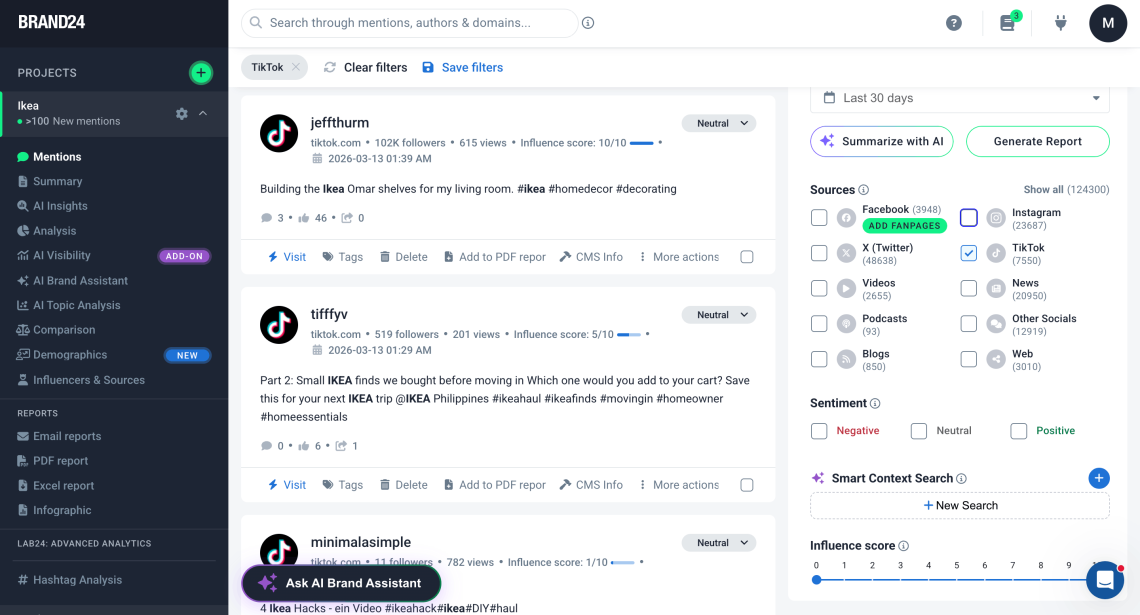
You can choose a single source or combine several to narrow down your results.
💡 Why is it useful?
Filtering by source helps you understand where your brand is being discussed and how those conversations differ across platforms. It lets you quickly focus on the channels that matter most for your analysis.
It’s especially useful when:
- you want to analyze social media conversations separately from news coverage
- you’re tracking media coverage for PR reporting
- you want to see how people talk about your brand on specific platforms like TikTok or Instagram
- you’re looking for long-form opinions in blogs or forums
04 Sentiment Filter
Sentiment Filter lets you view mentions based on their tone: positive, negative, or neutral.
🔍 What does this filter do?
This filter type makes it easy to quickly see how people feel about your brand, product, or campaign.
🧭 How do you use it?
Use the Sentiment Filter to display only mentions with the tone you want to analyze.
For example, if you’re monitoring Garmin, you could filter mentions to see only:
- negative mentions – to quickly spot complaints about devices, GPS accuracy, or Garmin apps
- positive mentions – to find happy users sharing their workout results or product recommendations
- neutral mentions – to follow general discussions about Garmin products
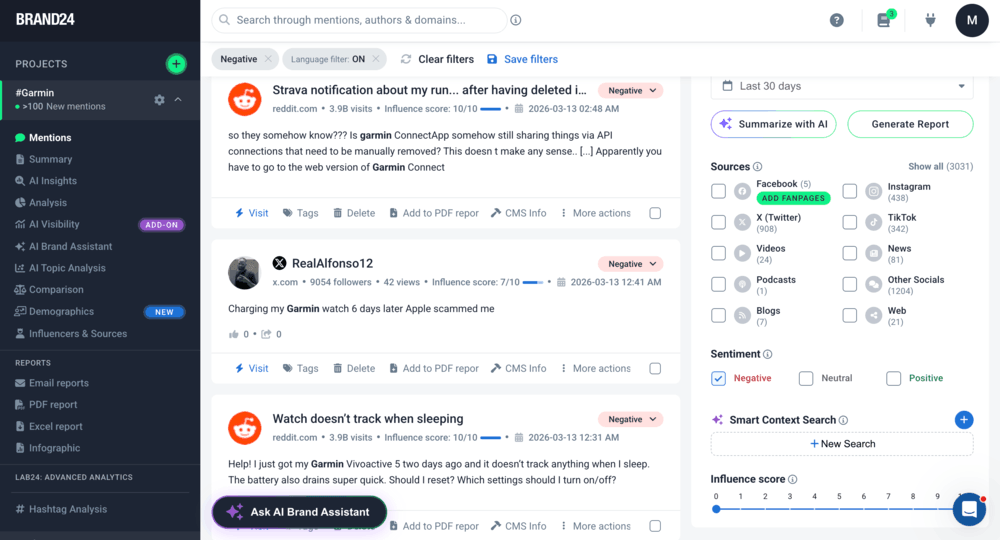
Once the filter is applied, your mentions list and charts are automatically updated.
💡 Why is it useful?
Monitoring sentiment is especially helpful when you’re tracking product feedback or customer experience.
For example, if Garmin releases a new smartwatch, filtering negative mentions helps you quickly identify potential issues users are reporting. This allows you to respond more quickly and address user issues before they escalate.
You can also use the Sentiment Filter to:
- track customer satisfaction
- measure brand perception during campaigns or product launches
- find positive mentions worth engaging with or sharing
05 Influence Score Filter
Influence Score Filter helps you identify mentions coming from influential authors or high-traffic websites.
🔍 What does this filter do?
In Brand24, each author or domain receives an Influence Score from 1 to 10. The higher the score, the greater the potential reach and impact of the mention.
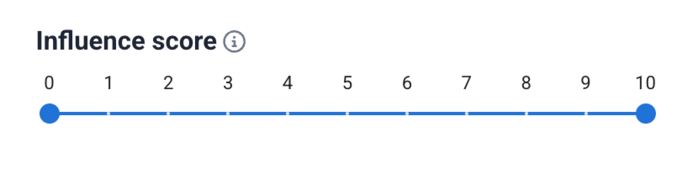
This makes it easier to quickly spot posts that may have a bigger influence on the conversation around your brand.
🧭 How do you use it?
Use the Influence Score Filter to display mentions published by authors or websites with a specific level of influence.
For example, if you’re monitoring beauty brand Gisou, you might want to focus on mentions from:
- beauty influencers reviewing Gisou products
- popular beauty blogs
- high-traffic lifestyle or fashion magazines
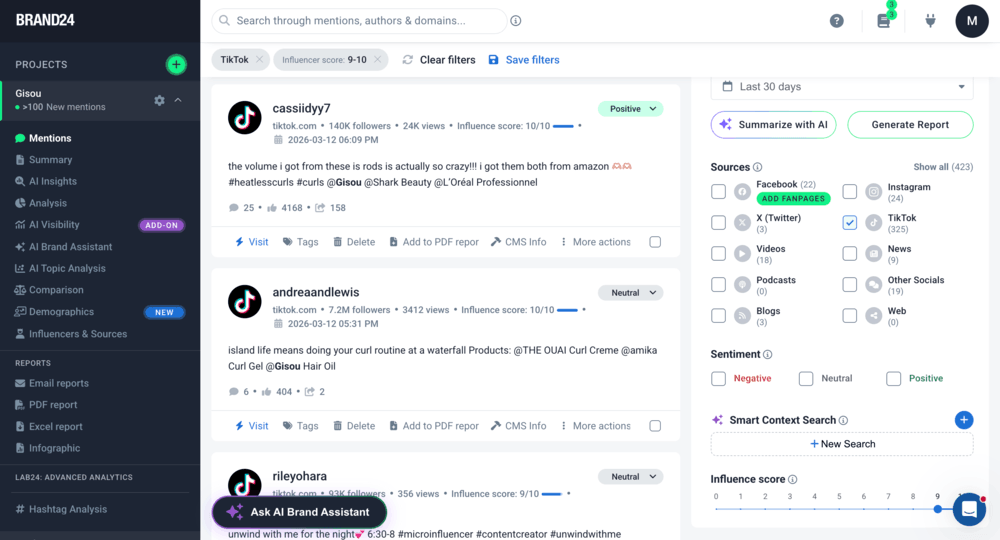
Filtering mentions by Influence Score helps you quickly find posts that are likely reaching a larger audience.
💡 Why is it useful?
Not every mention has the same impact, and the Influence Score filter helps you quickly identify posts from authors or websites with a larger reach.
It’s especially useful when you want to
- find mentions published by influential creators or media outlets
- identify posts that may reach a larger audience
- discover potential influencers already talking about your brand
This helps you prioritize the conversations that could have the biggest impact on your brand.
06 Language Filter
The Language Filter lets you view mentions based on the language they are written in.
🔍 What does this filter do?
Brand24 collects mentions from many regions and platforms, so discussions about your brand may appear in multiple languages. This filter helps you focus on only the languages relevant to your analysis.
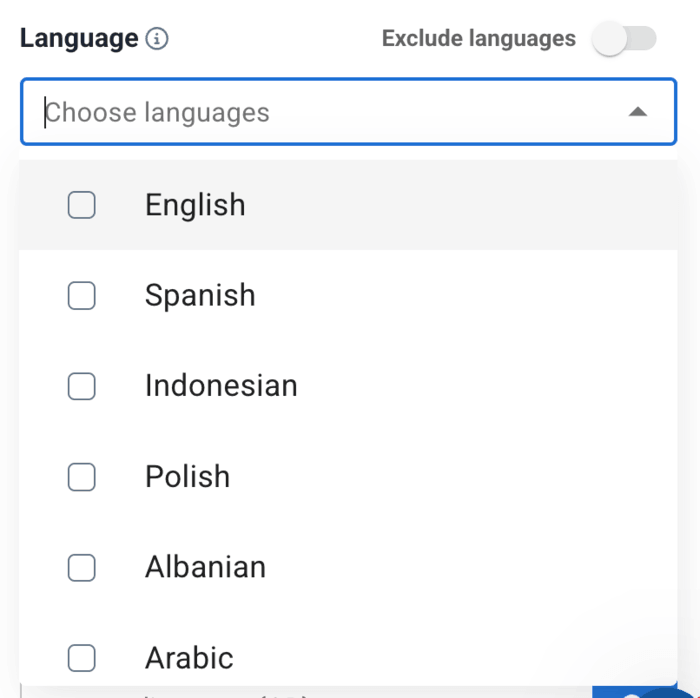
🧭 How do you use it?
To use the Language Filter, choose one or more languages from the filter panel.
For example, if you’re monitoring Adobe, you might collect mentions in all languages when setting up the project to capture the full global conversation.
Later, you can use the Language Filter to analyze only mentions written in a specific language, for example:
- English to review feedback from global users
- Spanish to see discussions in Spanish-speaking markets
- German to analyze conversations from the DACH region
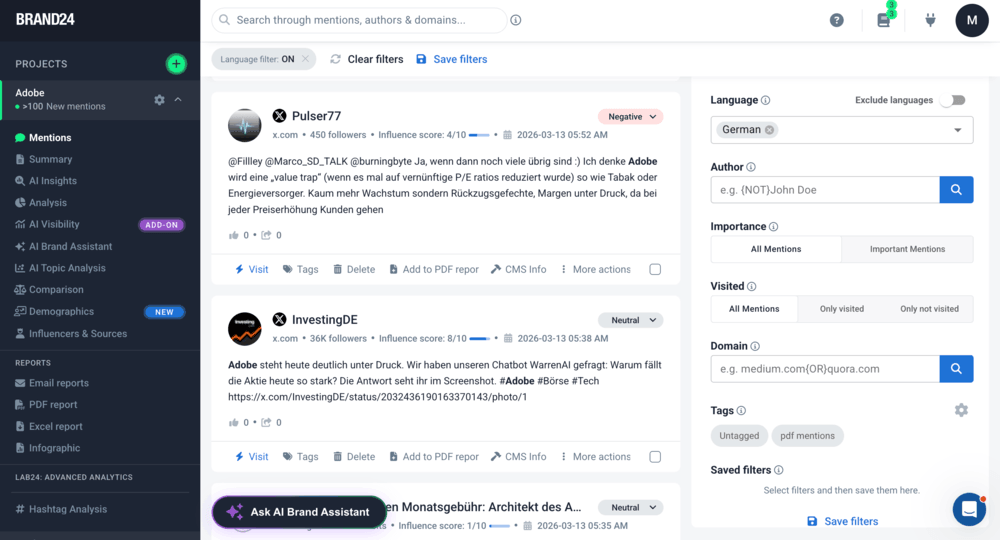
You can also exclude selected languages to remove them from your results.
💡 Why is it useful?
The Language Filter makes it easier to analyze conversations market by market, even if your project collects mentions from the entire world.
It’s especially helpful when:
- you monitor global brands like Adobe
- you want to analyze mentions from one specific language or region
- your project collects mentions in many languages
- local teams need insights for their specific markets
Instead of reviewing all mentions together, you can quickly focus on the conversations happening in the language you care about.
07 Importance Filter
The Importance Filter highlights mentions most likely to have a real impact on your brand discussion.
🔍 What does this filter do?
The Importance Filter highlights the most important mentions by looking at a few key signals, like:
- how popular the source is
- how influential the author is
- how strong the sentiment is
- how much engagement it’s getting (likes, shares, comments)
Rather than treating every mention the same, it surfaces the ones most likely to reach more people or drive bigger reactions.
🧭 How do you use it?
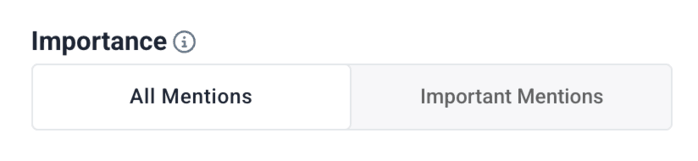
Just click the “Important Mentions” button. The tool will then list the most important mentions.
💡 Why is it useful?
Searching through all the mentions is time-consuming. Want to quickly discover valuable ones? This filter does the research for you.
It’s especially useful when you want to:
- quickly spot high-impact mentions
- find articles or posts getting strong engagement
- identify influential profiles or websites talking about your brand
08 Domain Filter
The Domain Filter lets you see or exclude mentions coming from specific websites.
🔍 What does this filter do?
The Domain Filter allows you to focus on mentions published on particular domains.
Instead of analyzing all mentions together, you can check discussions happening on specific websites, for example medium.com, substack.com, or other niche platforms where people publish articles or ask questions.
You can also remove mentions from certain domains if they are not relevant to your analysis.
🧭 How do you use it?
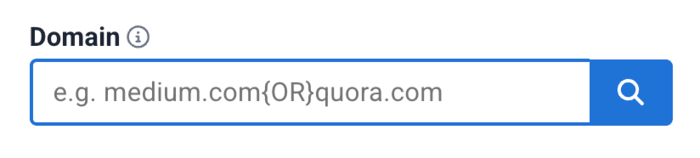
To use the Domain Filter, simply enter the domain you want to analyze.
For example, if you’re monitoring Nvidia, you might want to see only discussions coming from:
medium.com
This will display only mentions collected from Medium articles that talk about Nvidia.
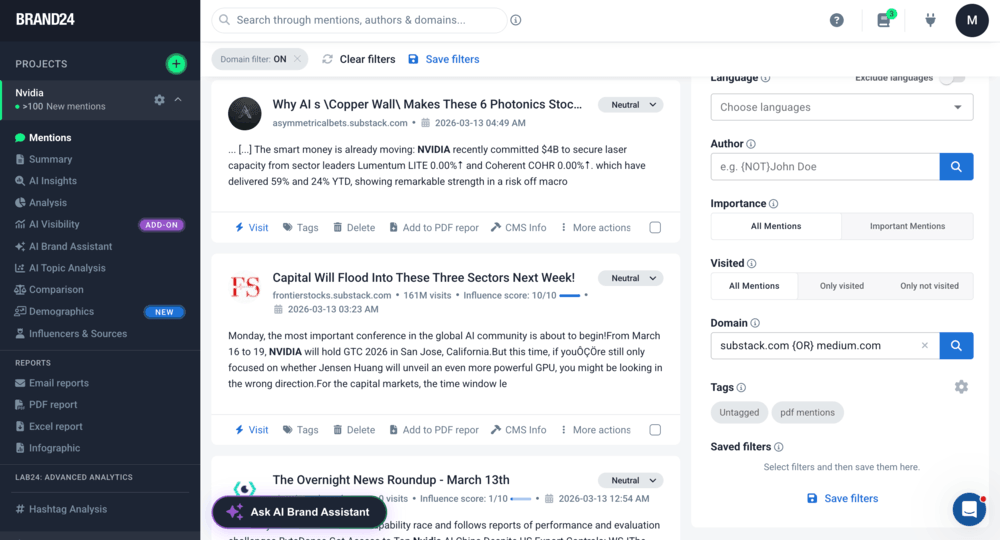
You can also combine multiple domains using Boolean operators {AND}, {OR}, {NOT}:
- medium.com {AND} substack.com – shows mentions from both domains
- {NOT} medium.com – removes mentions from Medium
This helps you narrow down your results to specific websites or communities.
💡 Why is it useful?
Filtering your mentions by domain gives you an idea about your brand’s popularity among particular audiences.
For example, if you’re monitoring Nvidia, you might want to check articles on Medium or in Substack newsletters where developers and AI enthusiasts share their thoughts on Nvidia technologies.
It’s especially useful when you want to:
- remove domains that generate irrelevant mentions
- analyze mentions from specific websites
- track discussions on industry blogs or niche platforms
09 Tags Filter
The Tags Filter lets you organize and analyze mentions based on tags you assign to them.
🔍 What does this filter do?
The Tags Filter displays mentions that have been labeled with specific tags.
Tags allow you to group mentions by topic, campaign, or category. Once mentions are tagged, you can filter your results to view only the ones that belong to a selected tag.
🧭 How do you use it?
First, assign tags to mentions in your project.
You can add tags directly from the Mentions tab, for example, to label mentions as:
- campaign
- customer advocacy
- partnership
- product issue
After tagging mentions, select a tag in the filter panel to display only mentions assigned to that tag. You can also select multiple tags if you want to narrow down your results further.
💡 Why is it useful?
Tags help you organize mentions and group them by topic, campaign, or priority.
It’s especially useful when you want to
- separate mentions related to different campaigns or products
- group conversations by themes such as feedback, partnerships, or media coverage
- analyze tagged mentions when preparing reports or summaries
It’s a simple way to keep large social listening projects organized and easier to analyze.
10 Time Range Filter
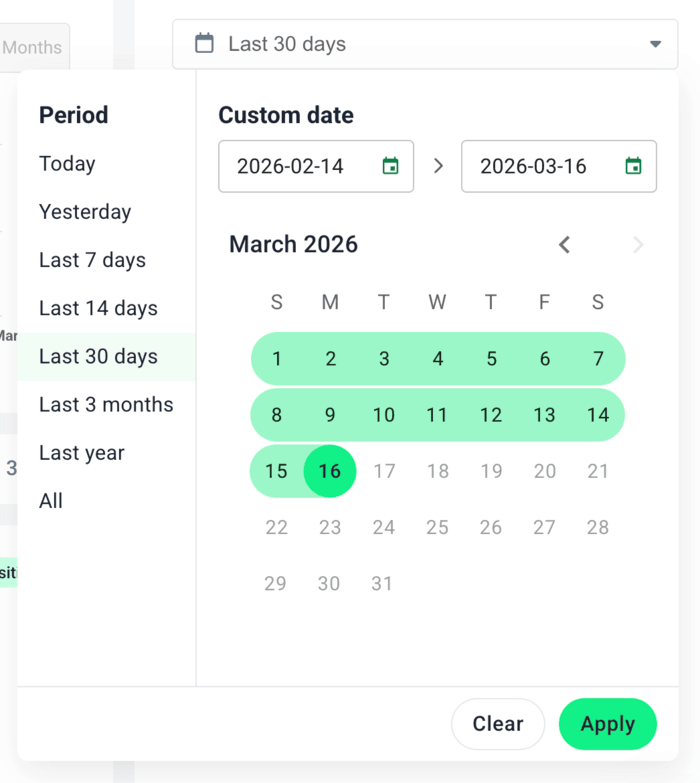
The Time Range Filter lets you view mentions from a selected time period.
🔍 What does this filter do?
The Date Filter allows you to display mentions collected within a specific timeframe.
By default, Brand24 shows mentions from the last 30 days, but you can easily change the time range to analyze conversations from a different period.
🧭 How do you use it?
Open the date selector and choose the timeframe you want to analyze.
You can quickly select preset ranges such as:
- Today
- Yesterday
- Last 7 days
- Last 14 days
- Last 30 days
- Last 3 months
- Last year
You can also choose a Custom date range using the calendar.
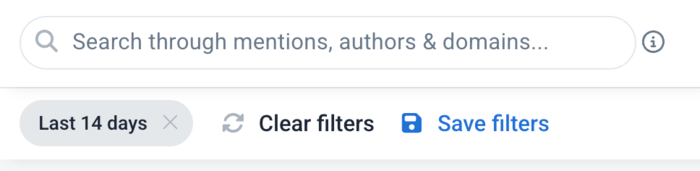
Once applied, Brand24 will display only the mentions collected during the selected period.
💡 Why is it useful?
Filtering mentions by date helps you analyze how conversations about your brand change over time.
It’s especially useful when you want to:
- analyze mentions during a specific campaign
- compare conversations before and after an announcement
- track discussions around product launches or events
- prepare a social listening report analyzing mentions from a specific timeframe
Instead of analyzing all historical data, you can focus only on the timeframe that matters for your analysis.
One more thing: Save your filters
When working with social listening data, you’ll often apply several filters at once.
For example, you might want to analyze negative mentions about your brand on TikTok written in English. To do that, you could apply filters such as:
- Source: TikTok
- Sentiment: Negative
- Language: English
If this combination gives you useful insights, you can save it as a filter set and reuse it later, anytime you need it!

Just click “Save filters”. You can find this option:
- below the search bar, next to the active filters
- at the bottom of the filters panel on the right, after scrolling down the list of filters
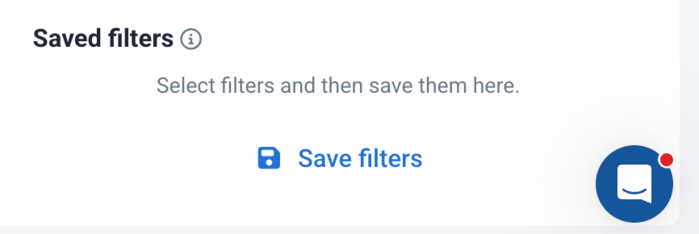
Saving filters lets you quickly return to the same view without applying the same filters again.
This is especially useful when you regularly analyze mentions for:
- reputation monitoring
- campaign analysis
- recurring reports
FAQ
Why are filters important in social listening tools?
This allows teams to quickly identify relevant conversations, detect potential issues, and focus on insights that matter for marketing, PR, or customer experience.